Every packaging task in one console. One elevation. Zero navigating.
I built Packaging Console after 30 years on Windows, tired of losing real time every day to the same navigating — hunting a registry path from memory, retyping msiexec flags, clicking through another UAC prompt. It replaces all of that with one unified, elevate-once desktop tool built specifically for the job of a Windows application packager.
Why I built it
The job hasn't changed. The number of places I had to visit to do it had gotten out of hand.
Validating an install, checking what a previous version left behind, confirming a reboot isn't already pending, reading an MSI's properties, wrapping something for Intune — none of that is hard. What eats the day is everything around it: opening regedit and typing a path from memory, elevating another command prompt, digging through Explorer for the Installer cache, guessing a silent switch that changed since the last version of that same installer, then hand-typing a long command with no real confidence the quoting's right.
None of that is skilled work. All of it is time. Packaging Console exists to remove it — not by changing what Windows does, but by making everything a packager already knows how to do reachable in one click, from one elevated session, without leaving the app.
Home
My day starts here — not spread across five different windows
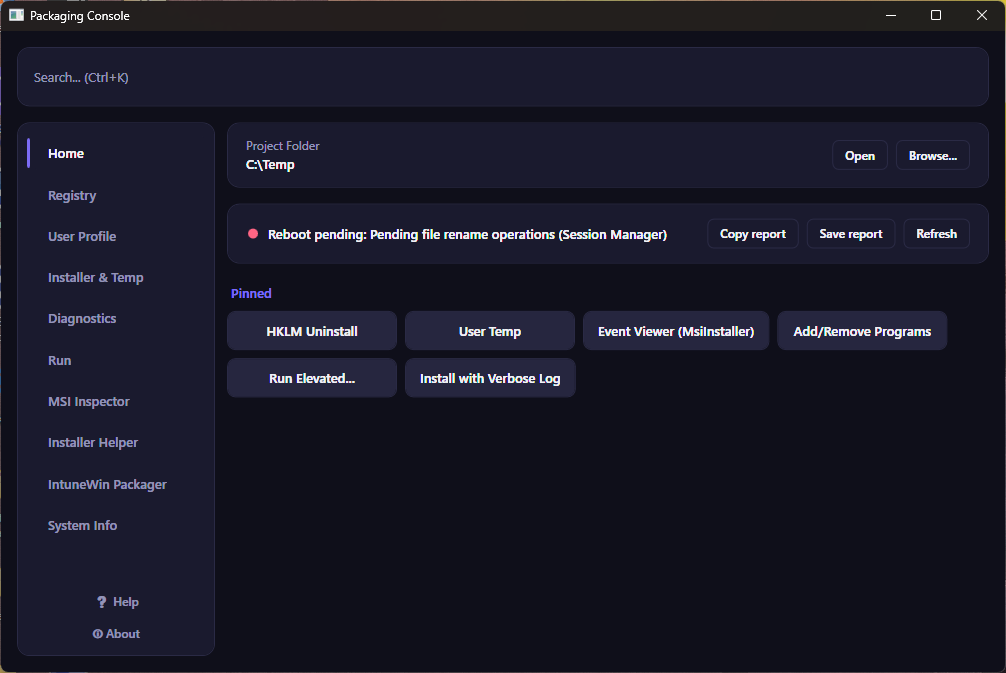
Home is the first thing I see on launch: my current Project Folder, a live reboot-pending check, and the handful of things I do constantly, pinned right where I land.
- Reboot-pending banner — checked across four separate signals (pending file rename operations, Component Based Servicing, Windows Update, and SCCM's own client state if present), so I know before I start an install whether the machine's already carrying a pending restart from something else.
- Project Folder — a per-session working folder I browse to once. Every log and report generated elsewhere in the app lands there automatically, and it always resets to a safe default rather than silently pointing at a folder from last week.
- Pinned favorites — right-click any button anywhere and pin it here. Six defaults are already seeded on first run.
- Search / Ctrl+K — type any part of a label from anywhere in the app and jump straight to it.
Registry
Every uninstall key, one click — including the one everyone forgets
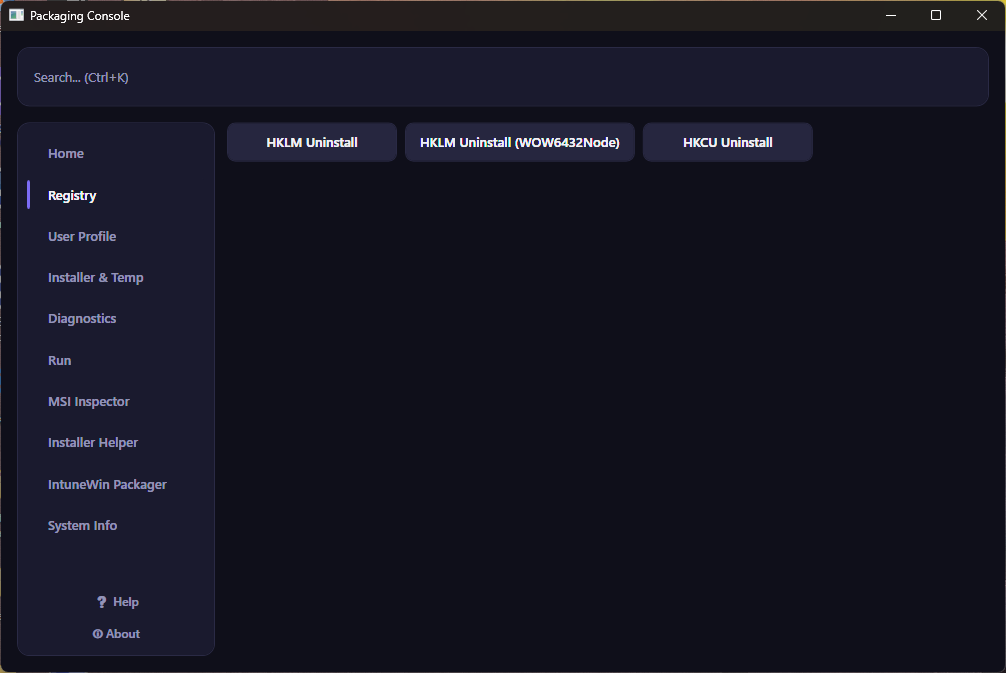
Opens regedit directly at the key I need, instead of me typing a path from memory and hoping I didn't fat-finger it.
- HKLM Uninstall and HKCU Uninstall — the two places every install/uninstall entry actually lives.
- HKLM Uninstall (WOW6432Node) — the 32-bit-on-64-bit redirected path that's trivially easy to forget, and just as easy to draw the wrong conclusion from when you do.
Each click sets regedit's own remembered location proactively, so it opens exactly where I need it — using a value Windows already manages, just triggered for me.
User Profile
AppData has three folders. It's always the one I didn't open.
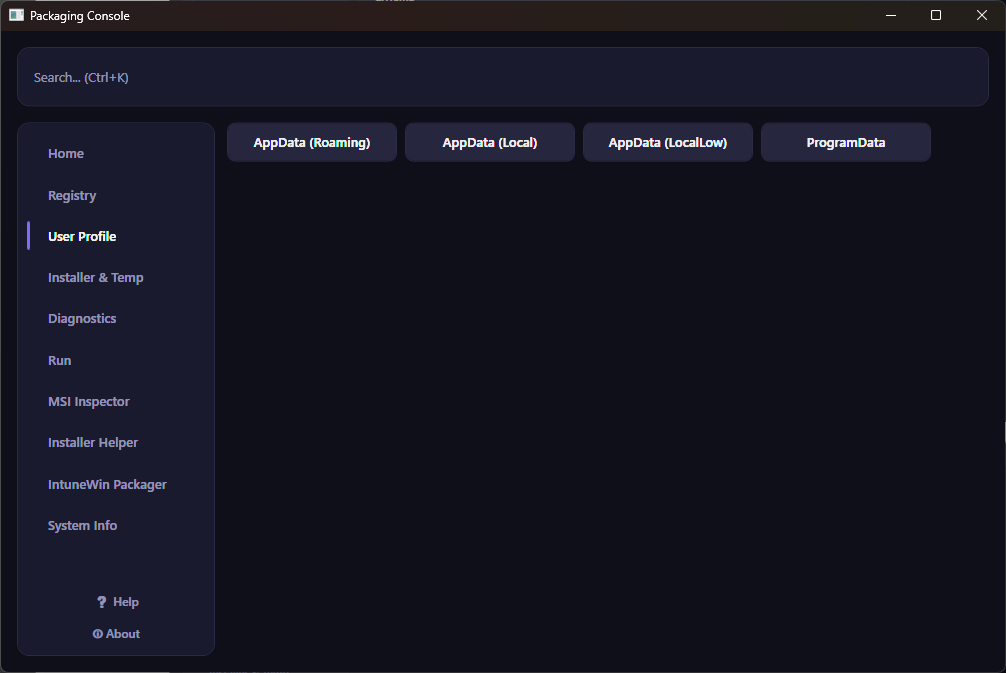
One click to AppData Roaming, AppData Local, AppData LocalLow, and ProgramData — the places an install can leave user-scoped or machine-scoped data behind — without turning on hidden files in Explorer first.
Installer & Temp
The Windows Installer cache, and every temp folder, without a DOS box
Windows Installer Cache, User Temp, Windows Temp, and Windows Logs — the exact folders I check when validating an install or hunting for what a package actually dropped — reachable directly, with %TEMP% and %WINDIR% expanded for me automatically.
cd %WINDIR%\Installer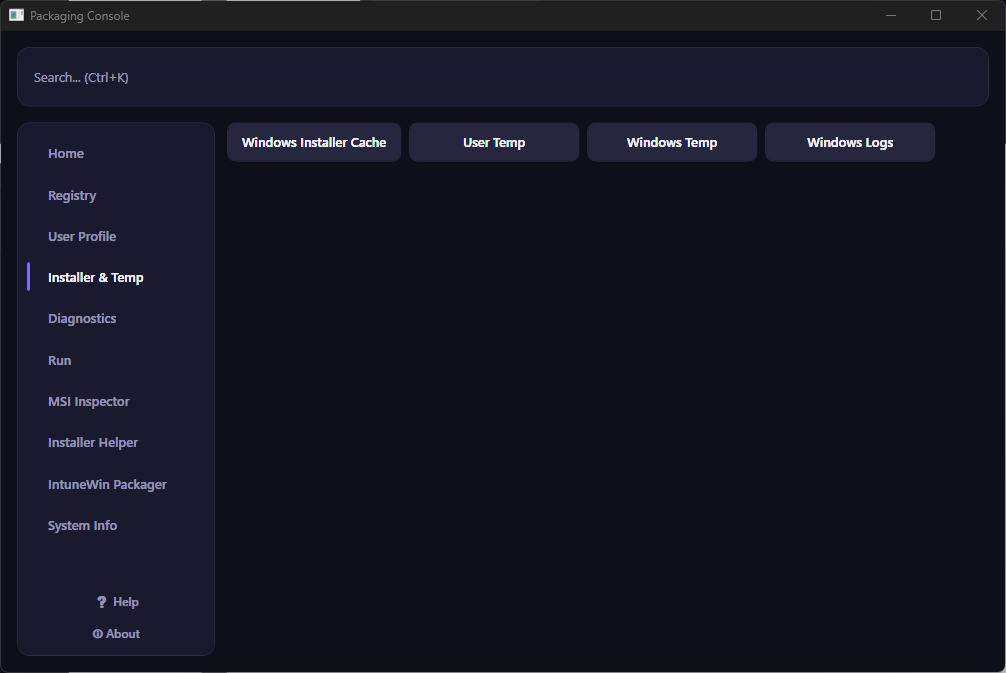
Diagnostics
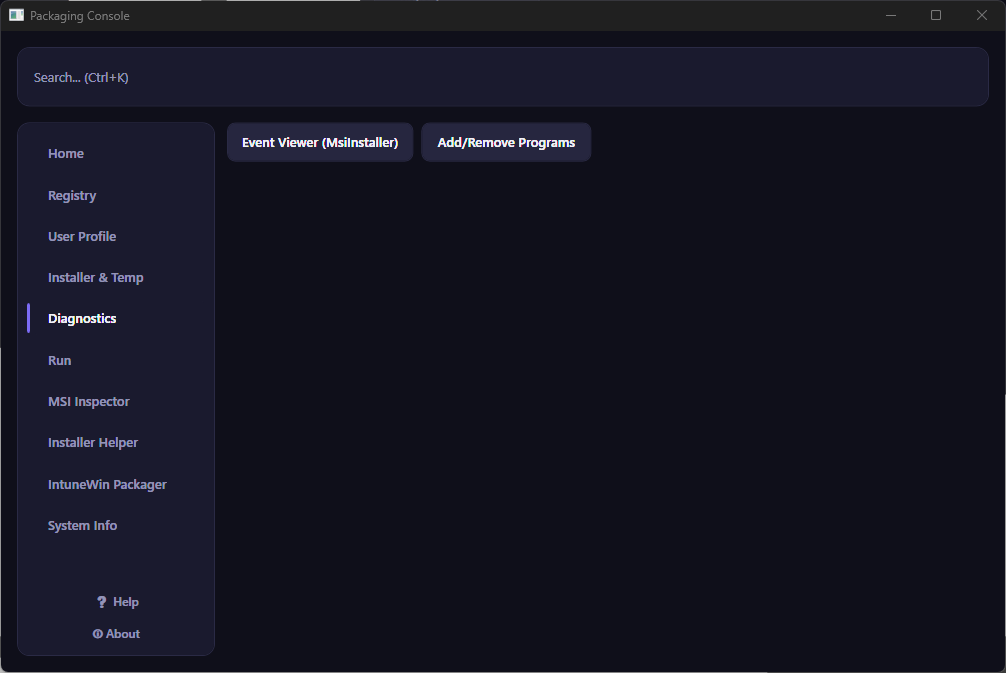
A pre-filtered Event Viewer, and Add/Remove Programs, without the detour
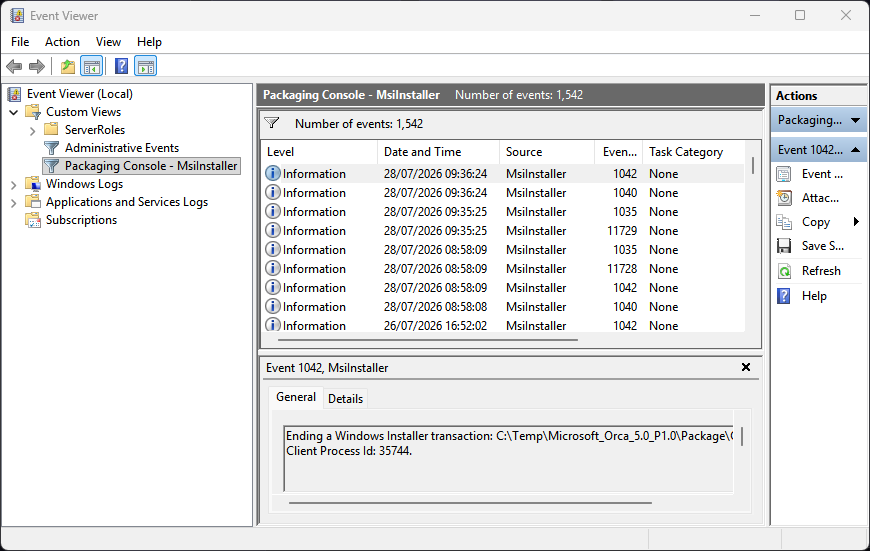
Windows doesn't give you a documented way to launch Event Viewer straight into a specific saved view — so clicking Event Viewer (MsiInstaller) creates or refreshes a Custom View filtered to Provider Name = MsiInstaller, then opens Event Viewer to it. One extra click to expand Custom Views and select it — a native Event Viewer limitation, not something I'm pretending to fully automate.
Add/Remove Programs sits right alongside it, since I check the two together constantly during install validation.
Run
Run anything elevated. Install with full logging. Properly, the way I'd already insist on doing it.
Right-clicking an MSI and hitting Install is bad practice for a packager — it can work, but it leaves real room for a failed or incomplete install with nothing to show for it afterward. What I've always done instead is go to the command line and build the proper install string myself, or run it through PSADT or a batch file, so I get a controlled result and a real log. Run is that same discipline, just without the typing.
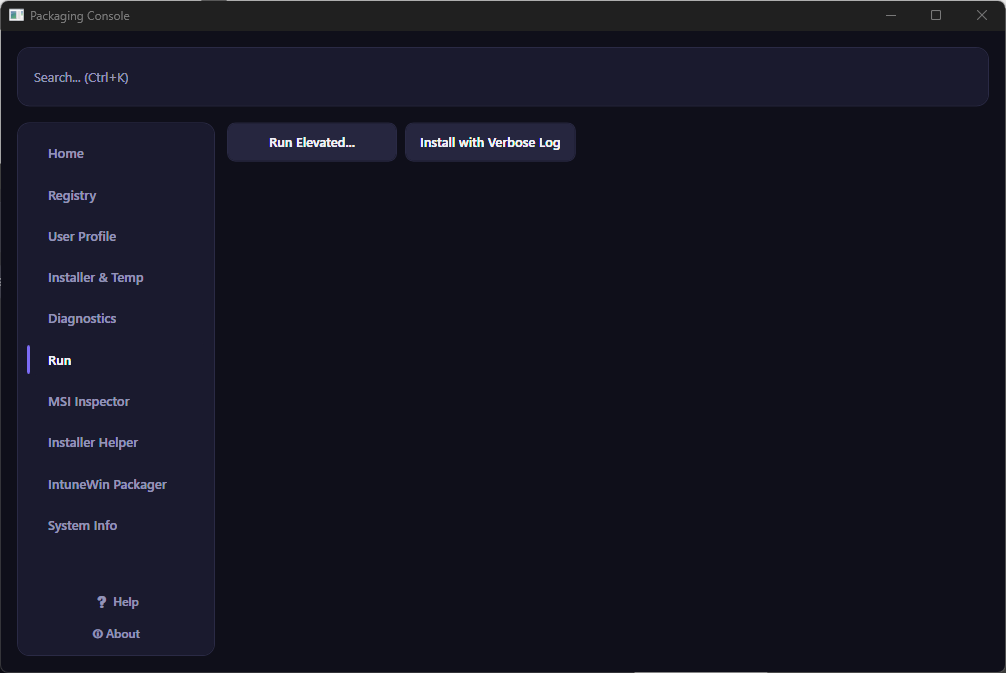
- Run Elevated… — browse to any
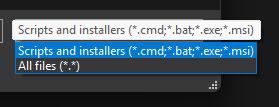
.cmd,.bat,.exe, or.msiand it runs with the console's own admin token. Install-script locations move around between every package; whatever I pick inherits elevation directly, not through a non-elevated Explorer shell. - Install with Verbose Log — browse to an
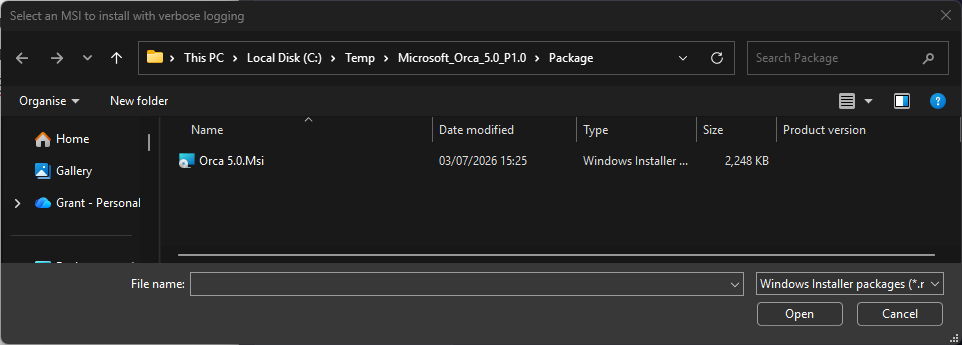
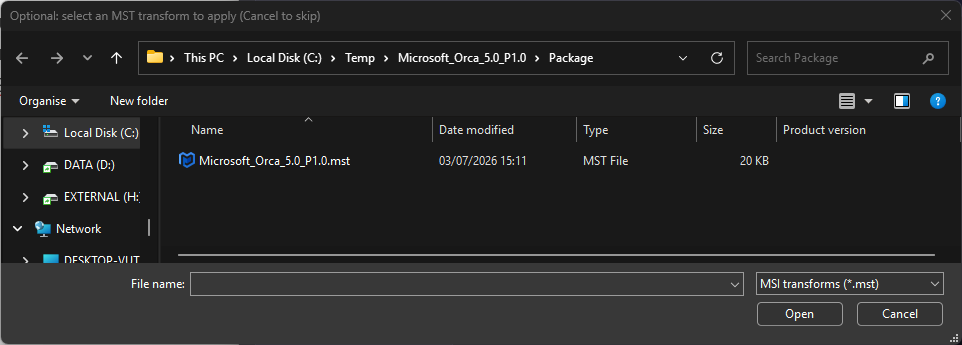
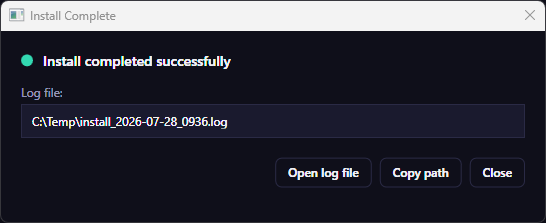
.msi, add a.mstif there is one, and it builds and runs the fullmsiexec /i … /l*v …command in the background while I keep working. When it's done, a dialog shows the log path with Copy and Open buttons right there.
MSI Inspector
Every MSI property, readable and copyable, without opening Orca
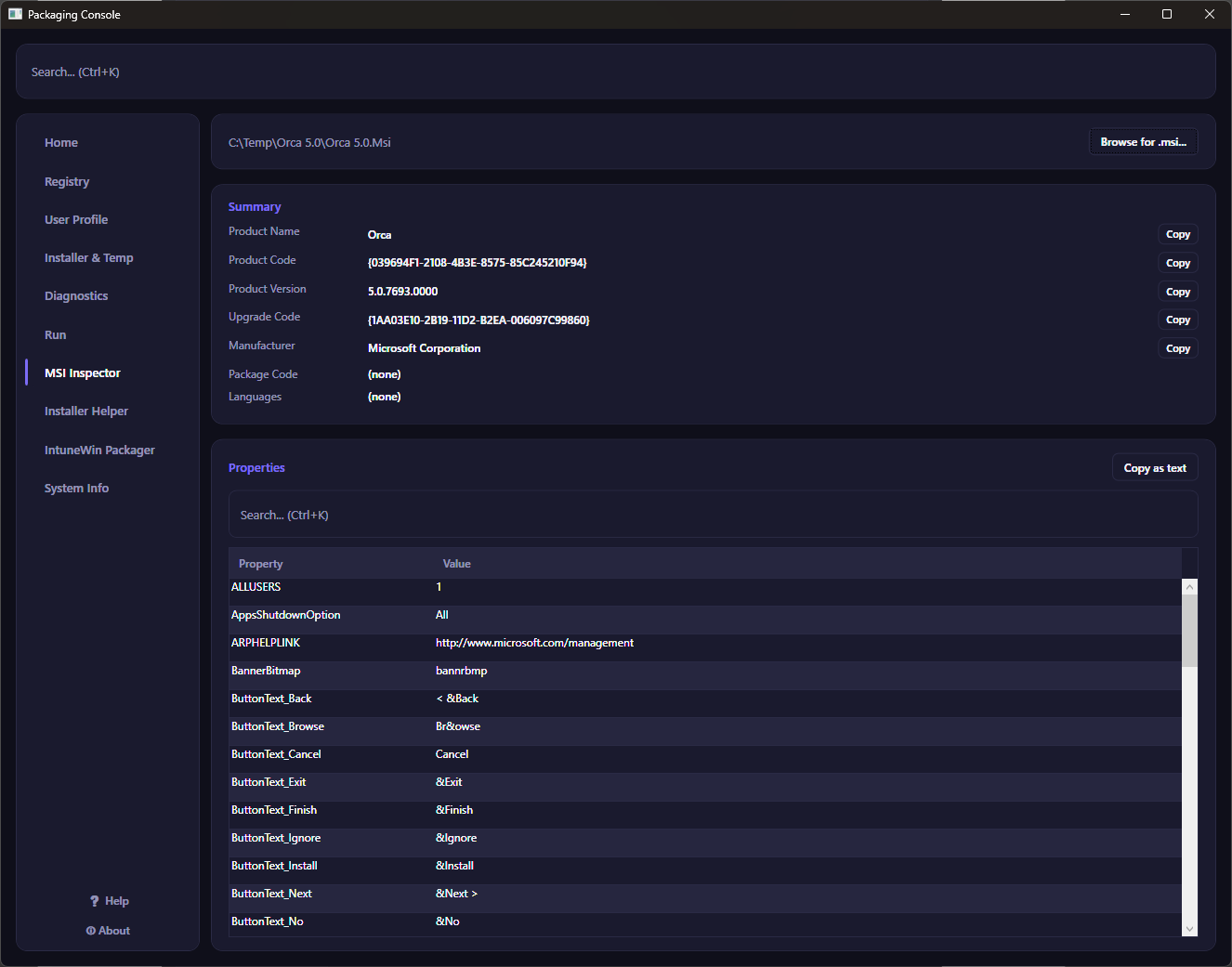
Browse to any .msi and see its Product Name, Product Code, Product Version, Upgrade Code, Manufacturer, Package Code, and Languages at a glance — plus the full, searchable Property table underneath.
- Copy buttons sit right on the fields I actually paste into command lines and tickets — Product Code and Upgrade Code first, Product Name, Manufacturer, and Product Version alongside them.
- Reads the MSI through the same Windows Installer automation interface that ships with every copy of Windows — no third-party library, no licensing question, nothing extra installed.
Installer Helper
"What silent switch does this even use?" — answered, honestly
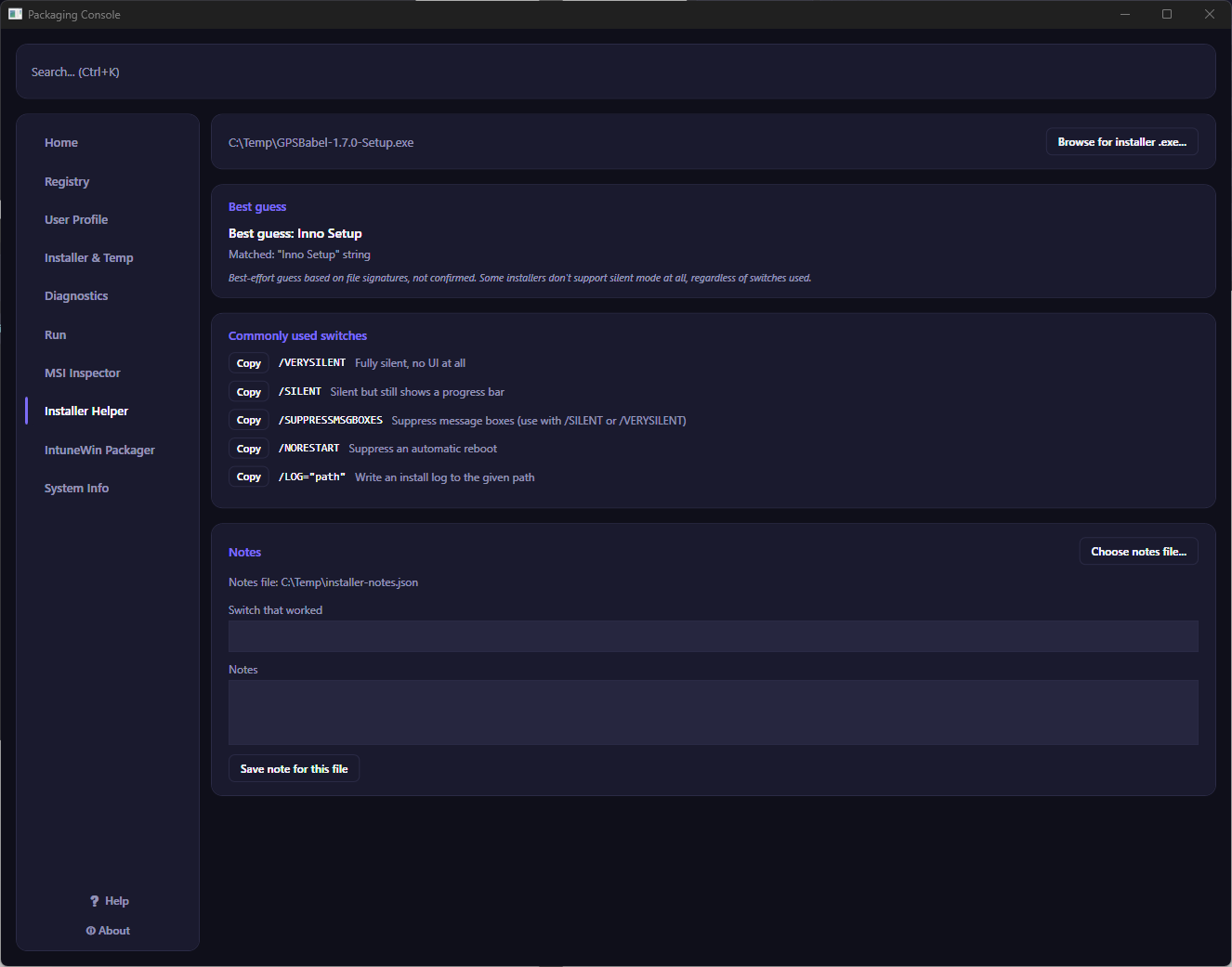
Bare .exe installers give no obvious sign of what's underneath. Installer Helper scans the file for known signatures and gives a best-effort guess — Inno Setup, NSIS, InstallShield, WiX Burn, and more — then shows the commonly used silent switches for that type.
Once I've manually confirmed the switch that actually works for a specific file, I save it — the app remembers it by the file's own content hash, so the exact same installer shows "you've seen this before" next time, without ever assuming a shared location for those notes across different clients.
IntuneWin Packager
Wraps Microsoft's own packaging tool — so I never touch the command line for it again
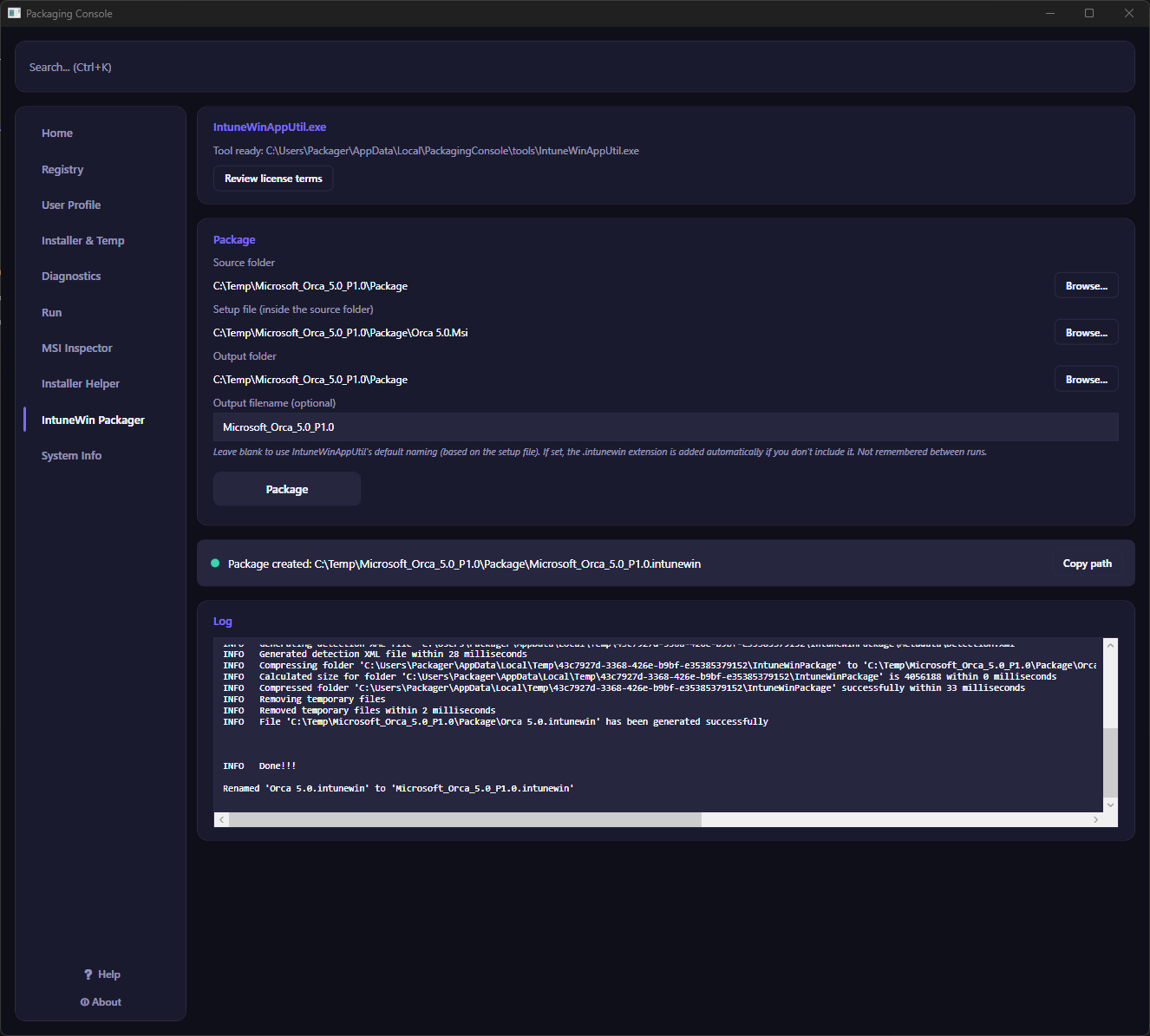
Pick a source folder, a setup file, and an output folder, then click Package. Real-time log output streams as it runs, and the resulting .intunewin path is one click from my clipboard when it's done.
- Optional output filename — leave it blank for the tool's own naming, or set one and the result is renamed automatically the moment packaging finishes, with a confirmation before it ever overwrites an existing file.
- Works online or offline — checks a locally available copy first (including one I've placed myself, for client sites with no internet access), only attempting a download — always straight from Microsoft's own official source, never a mirror — if nothing local is found.
- Source folder, setup file, and output folder are all remembered between runs, since going back into a package after rework is the normal case, not the exception.
System Info
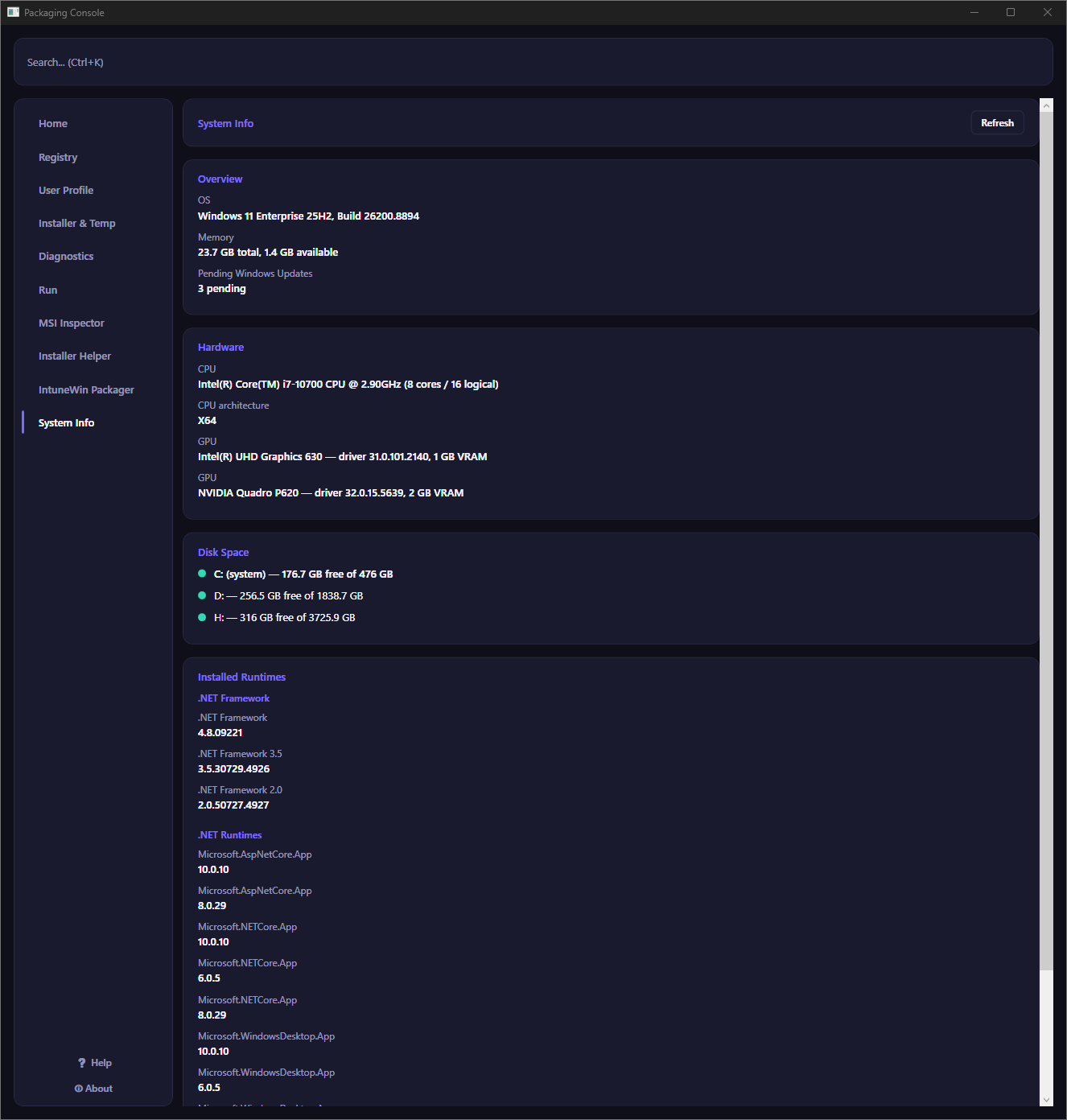
Everything about the machine I'm standing on, in one glance
Disk space per drive, memory, CPU (model and core count), GPU (model, driver version, VRAM), CPU architecture, OS build and edition, pending Windows Update count, and the exact .NET Framework, .NET runtime, and Visual C++ redistributable versions installed — the most common source of a mysterious install failure, made visible instead of guessed at.
Everything here is read live from the machine each time I visit or hit Refresh — nothing's written to disk, nothing's cached stale.
Custom config — my favorite part of this
Add your own shortcuts. No recompiling, no code.
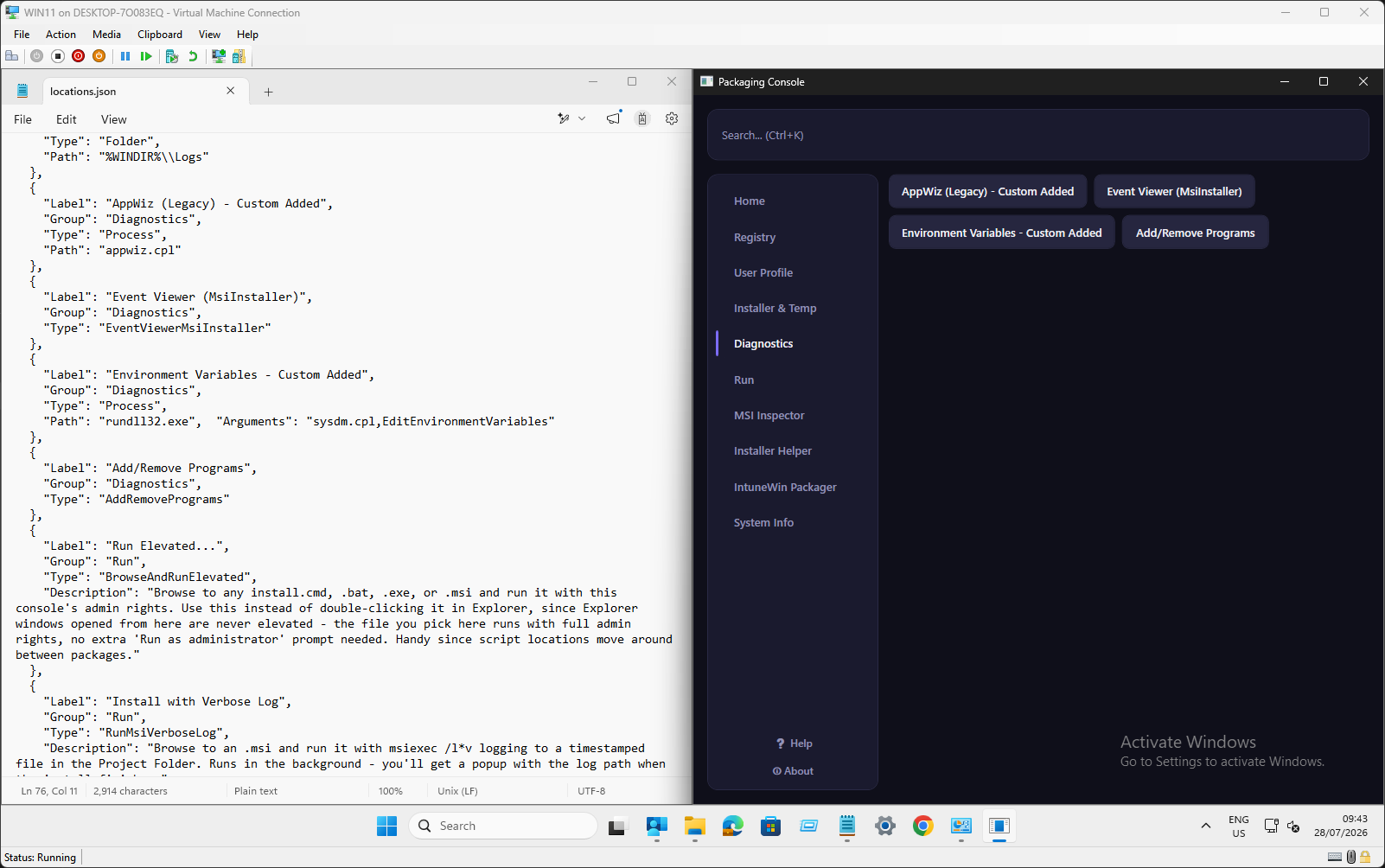
Every button in the app, aside from a few dedicated tools like MSI Inspector, comes from one plain locations.json file. Add an entry, save, relaunch — a brand-new category can appear in the rail automatically, generated from whatever Group name you use. This is genuinely the coolest part of the whole thing: the console isn't fixed to how I work, it bends to how anyone on the team works.
Six entry types cover almost anything a team wants quick access to — folders, registry keys, arbitrary processes and Control Panel applets, plus a few built-in behaviours like Add/Remove Programs and the filtered Event Viewer.
For the people signing off on it
It's Windows, doing what Windows already does — just from one place
Every action in this console is something Windows itself already exposes and permits — regedit navigation, Event Viewer, Explorer, Add/Remove Programs, and the same Windows Installer engine every MSI already runs through. Nothing here reaches further than I could already reach by hand; it just removes the friction of getting there.
No kernel drivers, ever
Nothing is installed at the system level. The app is a normal user-mode Windows program that elevates once, the same way any admin tool does, and does nothing an admin couldn't already do by hand.
One external code dependency
Built in C# on .NET, the app has exactly one third-party package in its entire codebase, used only for an optional SCCM check — verified directly against the compiled project. It does ship alongside a handful of native WPF runtime files, part of any self-contained .NET desktop app, so it isn't literally one file — but there's no external code, no NuGet package, beyond that single one.
Documented, not just trusted
The in-app Help screen lists precisely what the app writes to disk or the registry, where, and when — the same footprint table a security review would ask for, available before anyone has to ask.
No PowerShell required
Nothing about running or distributing this tool depends on PowerShell execution policy, script signing, or an admin loosening a security control to allow it. It's a plain, signed-capable .exe.
Portable, inspectable
Ships as a self-contained folder — unzip, unblock, run. The only network access the app itself ever initiates is a documented, on-demand fetch of Microsoft's own IntuneWin packaging tool from Microsoft's official source, and only when nothing's found locally first. Nothing else calls out anywhere. (One honest caveat: since the nav config is a plain, user-editable file, someone could point a custom entry at a network location — that's the same openness that makes the config useful, not the app reaching out on its own.)
Open about its limits
Where Windows itself has a real limitation — Event Viewer's saved-view launching, an installer with no silent mode at all — the app says so plainly, rather than pretending to fully automate something it can't.
What's next
On the roadmap
Two more tools planned, both aimed at the same problem: command lines that are easy to get right in your head, and easy to get subtly wrong when you actually type them.
MSI command-line builder
Tick the properties I need, pick a UI level, and get a fully-formed install and uninstall command line — built, not remembered — ready to test immediately and copy out for deployment.
ALLUSERS=1 — install for all users of the machineREBOOT=REALLYSUPPRESS — suppress a forced reboot after installREINSTALLMODE=vomus — force a full reinstall over an existing version/qn (silent) · /qb (basic UI)MSIX command-line builder
Same idea, aimed at provisioning and deprovisioning an MSIX package to a machine or a single user — with quick access to view the package manifest and details before committing to a deployment.
- Provision for all users on a machine, or a single user, without recalling the exact PowerShell cmdlet syntax
- Deprovision cleanly, machine- or user-scoped
- Inspect a package's manifest and identity details directly, the same idea as MSI Inspector applied to MSIX
Documentation
Help is built in — and it stays with the file
Every footprint the app leaves on a machine, every behaviour that needs a one-line explanation, lives directly inside the app's own Help screen — not a separate manual someone has to go find.